
FragmentのレイアウトにToolBarを追加した場合、NavigationViewやViewPagerなど、複数のFragmentが切り替わるUIでは、ToolBarの切り替えがうまくいかず、想定外の動きをしてしまう場合があります。
そこでToolbarはFragmentではなく、親Activityのレイアウトに定義するべきなのですが、Fragment毎にToolbarのオプションメニューを変えたい場合、実装が独特になるので、その辺を含めて、解説していきます。
やりたい事
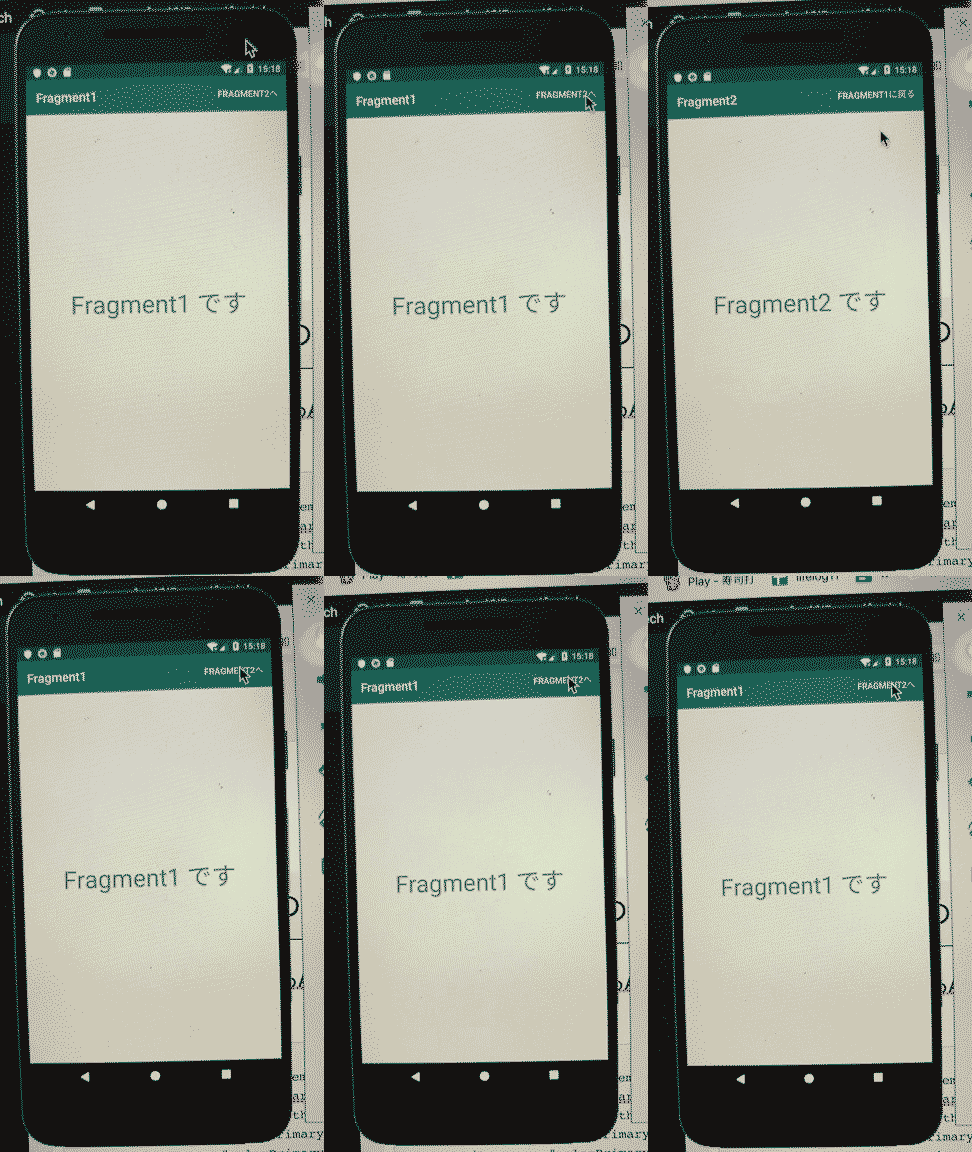
このサンプルでやりたいのはこんな感じです。
- ActivityにFragment1をセット。
- Fragment1からFragment2へ遷移させる
- Fragment1とFragment2ではそれぞれ、「オプションメニューの内容とタイトルが違う」
結果はこうなります
親画面 Activityの実装
res/values/styles.xmlのテーマはNoActionBarにしています。
<resources>
    <!-- Base application theme. -->
    <style name="AppTheme" parent="Theme.AppCompat.Light.NoActionBar">
        <!-- Customize your theme here. -->
        <item name="colorPrimary">@color/colorPrimary</item>
        <item name="colorPrimaryDark">@color/colorPrimaryDark</item>
        <item name="colorAccent">@color/colorAccent</item>
    </style>
</resources>
まずActivityのlayoutにToolbarと、Fragmentを配置するFrameLayoutを置きます。
activity_main.xml
<LinearLayout android:orientation="vertical"
    xmlns:android="http://schemas.android.com/apk/res/android"
    xmlns:tools="http://schemas.android.com/tools"
    android:layout_width="match_parent"
    android:layout_height="match_parent"
    tools:context=".MainActivity"
    xmlns:app="http://schemas.android.com/apk/res-auto">


    <androidx.appcompat.widget.Toolbar
        android:id="@+id/toolbar"
        app:titleTextColor="#FFFFFF"
        android:background="@color/colorPrimary"
        android:layout_width="match_parent"
        android:layout_height="?attr/actionBarSize"/>

    <FrameLayout
        android:id="@+id/fragmentLayout"
        android:layout_width="match_parent"
        android:layout_height="match_parent"
        android:layout_weight="1">
    </FrameLayout>

</LinearLayout>
そして、ソース側で、toolbarのセットと、fragmentのセットをします。
MainActivity.kt
class MainActivity : AppCompatActivity() {

    override fun onCreate(savedInstanceState: Bundle?) {
        super.onCreate(savedInstanceState)
        setContentView(R.layout.activity_main)

        setSupportActionBar(toolbar)

        val fragmentTransaction = supportFragmentManager.beginTransaction()
        val fragment1 = Fragment1()
        fragmentTransaction.add(R.id.fragmentLayout, fragment1)
        fragmentTransaction.commit()
    }
}
子画面 Frament1の実装
子画面のFragmentでは、onActivityCreatedで、タイトルのセットと、オプションメニューをセットすることの宣言を行います。
Fragment1.kt
    override fun onActivityCreated(savedInstanceState: Bundle?) {
        super.onActivityCreated(savedInstanceState)

        activity?.setTitle(R.string.fragment1)

        setHasOptionsMenu(true)
    }
setHasOptionsMenu(true)を呼び出すことで、メニューを生成するonCreateOptionsMenuが呼ばれるようになるので、メニューの生成とハンドリングを追加します。
    override fun onCreateOptionsMenu(menu: Menu?, inflater: MenuInflater?) {
        inflater?.inflate(R.menu.fragment1_menu, menu)
    }

    override fun onOptionsItemSelected(item: MenuItem?): Boolean {
        // Fragment2に遷移する
        if (item?.itemId == R.id.toFragment2) {
            val fragmentManager = activity?.supportFragmentManager
            val fragmentTransaction = fragmentManager?.beginTransaction()
            val fragment2 = Fragment2()
            fragmentTransaction?.replace(R.id.fragmentLayout, fragment2)
            fragmentTransaction?.commit()
        }

        return true
    }
メニューのlayoutは次の通り
res/menu/fragment1_menu.xml
<?xml version="1.0" encoding="utf-8"?>
<menu xmlns:android="http://schemas.android.com/apk/res/android"
    xmlns:app="http://schemas.android.com/apk/res-auto">

    <item
        android:id="@+id/toFragment2"
        android:title="Fragment2へ"
        app:showAsAction="always"/>
</menu>
子画面 Frament2の実装
こちらはFragment1とほぼ一緒です。
Fragment2.kt
    override fun onActivityCreated(savedInstanceState: Bundle?) {
        super.onActivityCreated(savedInstanceState)

        activity?.setTitle(R.string.fragment2)

        setHasOptionsMenu(true)
    }

    override fun onCreateOptionsMenu(menu: Menu?, inflater: MenuInflater?) {
        inflater?.inflate(R.menu.fragment2_menu, menu)
    }

    override fun onOptionsItemSelected(item: MenuItem?): Boolean {
        if (item?.itemId == R.id.toFragment1) {
            val fragmentManager = activity?.supportFragmentManager
            val fragmentTransaction = fragmentManager?.beginTransaction()
            val fragment1 = Fragment1()
            fragmentTransaction?.replace(R.id.fragmentLayout, fragment1)
            fragmentTransaction?.commit()
        }

        return true
    }
res/menu/fragment2_menu.xml
<?xml version="1.0" encoding="utf-8"?>
<menu xmlns:android="http://schemas.android.com/apk/res/android"
    xmlns:app="http://schemas.android.com/apk/res-auto">

    <item
        android:id="@+id/toFragment1"
        android:title="Fragment1に戻る"
        app:showAsAction="always"/>
</menu>
ポイントとしては、ActivityのレイアウトにToolBarをセットして、setSupportActionBar、をした後は、各Fragmentで、ToolBarの設定を全て行う、ということです。
以上となります!
twitterでも毎日開発情報をつぶやいていますので、フォロー宜しくおねがいします。